Catalogue Architecture
Part of Ecommerce themes and storefront performance
Finding apps that slow the storefront
An app may slow a storefront through scripts, injected content or network requests, but a slow page does not identify the culprit by itself.
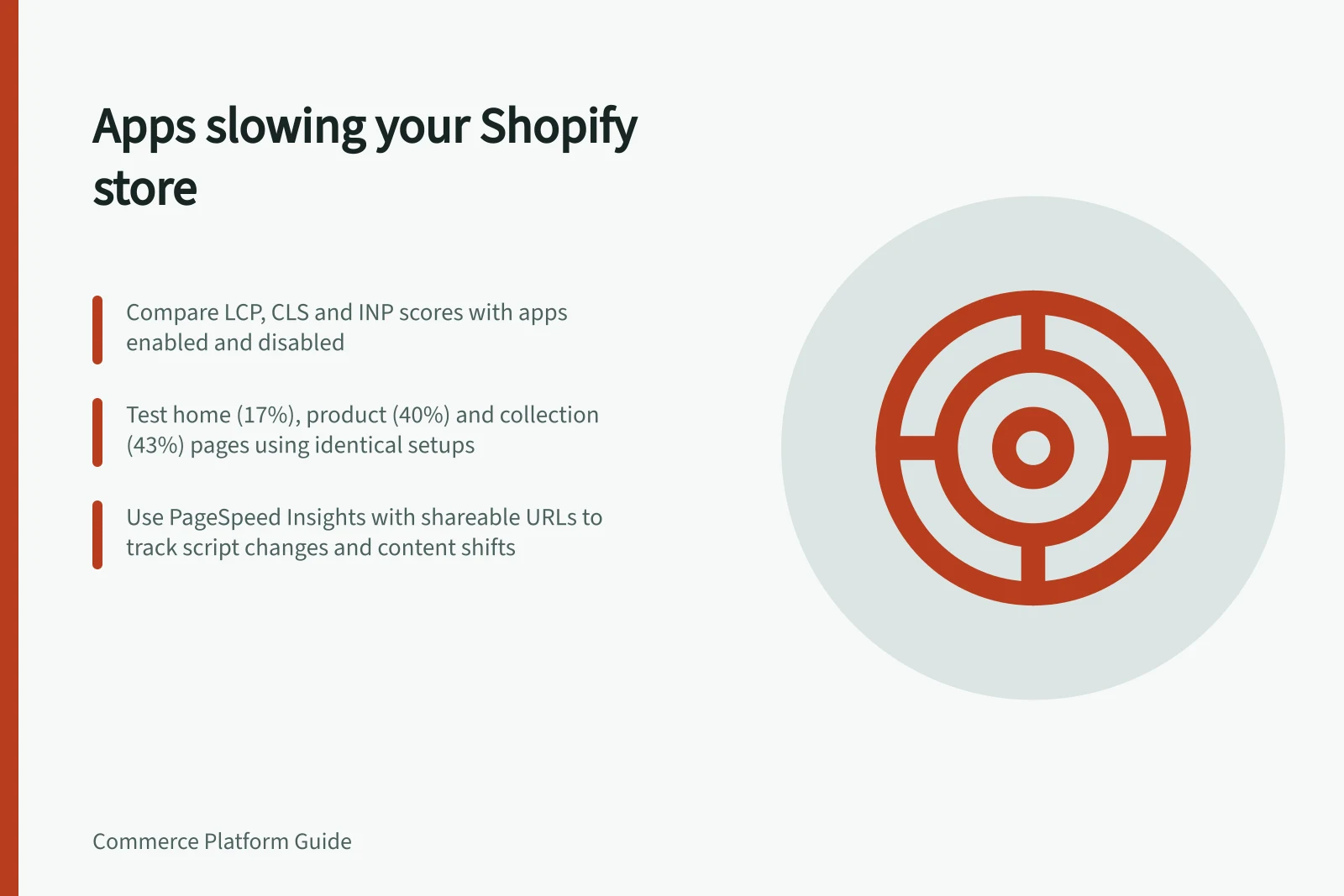
A slow page does not identify its app culprit. Compare the same Shopify home, product and collection pages with one app enabled and disabled, then see whether the change follows that app.
Track LCP, CLS and INP: LCP is when the largest element in the initial viewport finishes rendering, CLS measures unexpected visible movement, and INP measures visible response time after a tap or click.
Establish a repeatable baseline
Shopify's app-impact method compares Lighthouse scores before and after an app is installed and configured. It weights the home page at 17%, product details at 40% and collection pages at 43%, so test all three with the same app configuration each time.
In Shopify admin, go to Online Store > Themes, right-click View your store and choose Copy link address. PageSpeed Insights can access this shareable home-page URL even when the store is password-protected.
To test a product page, copy its path after .myshopify.com and insert it into the test URL before ?key=. Retrieve a collection-page path too, and use comparable testable URLs for each run.
Choose pages with realistic content. Record LCP, CLS, INP and page behaviour under comparable device and connection conditions, and note which apps and tags load on each page.
Shopify's documented app test starts with a clean install of a supported theme, such as Horizon, without the app or any other apps installed. For a merchant check, use a safe preview where possible and change only the suspected app's enabled state between runs.
Steps to Identify Slow Apps Using PageSpeed Insights
- Access a shareable URL for your home page via Shopify admin > Online Store > Themes > Copy link addressUse the copied URL in PageSpeed Insights even if the store is password-protected
- Retrieve product and collection page paths from your site and insert them into test URLs with ?key=Ensure all pages have realistic content and consistent testing conditions
- Run Lighthouse tests on each page with and without the suspected app enabledCompare LCP, CLS, INP and page behaviour across runs
- Use a clean install of a supported theme like Horizon for baseline testingEnable only one app at a time to isolate performance impact
Decide what to change
Review installed apps in Shopify admin and note the storefront features they add. Product reviews, loyalty programmes, subscriptions, email pop-ups and abandoned-cart features are examples; some apps add visible elements, while others work in the background.
Test one suspected app or embed at a time: compare the same pages with it disabled and enabled, using PageSpeed Insights and the Lighthouse score comparison. Check the browser request list and page behaviour for scripts or injected content that disappear when the app is disabled and return when it is enabled.
A repeated change associated with one app is stronger evidence than a single score. Large scripts can affect interaction even when the initial page looks quick, and injected banners can shift content after they appear.
If an app is responsible, consider whether its function is essential, whether it can load only on relevant pages or after the main content, and whether the vendor offers a lighter setup. Test any replacement with the same shopper task.
Removing an app can break reviews, subscriptions or consent controls, so verify the feature as well as speed. Record the before-and-after conditions and uncertainty; a repeated pattern across relevant pages is stronger evidence than one run.
Evaluating Whether to Keep or Remove a Performance-Impacting App
- ProsAdds essential features such as loyalty programmes, email pop-ups, abandoned-cart recovery, or product reviews
- ConsIncreases LCP, causes layout shifts (CLS), delays interactivity (INP), injects large scripts or banners that shift content after load